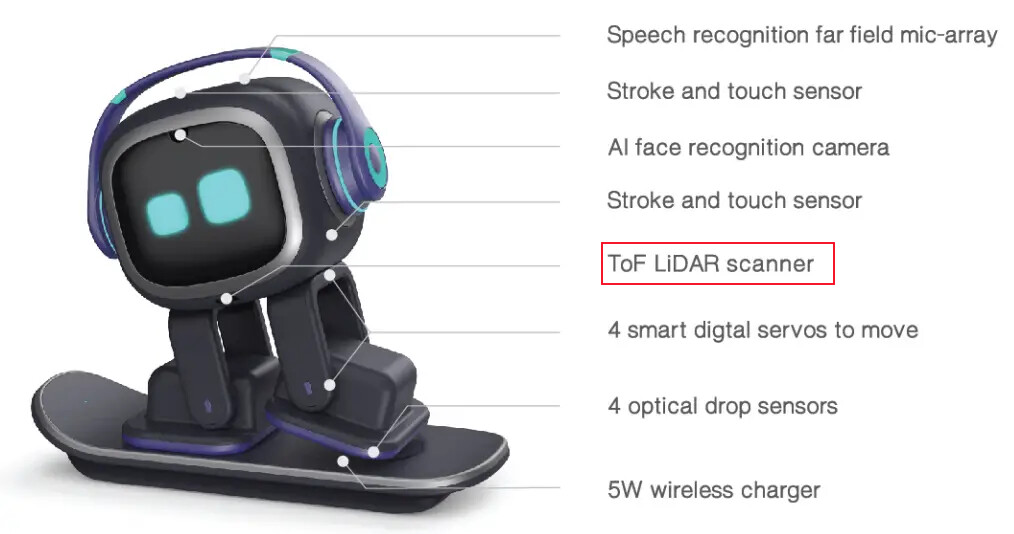
EMO’s **TOF (Time-of-Flight) LIDAR scanner ** serves several important purposes that help him navigate safely and interact intelligently with his surroundings. Here’s what it does:
Main Purposes of EMO’s TOF (Time-of-Flight) LIDAR scanner
Preventing Falls / Edge Detection
The TOF (Time-of-Flight) LIDAR scanner measures the distance to the ground.
This helps EMO detect table edges or any sudden drop, so he won’t fall off a surface.
Obstacle Detection
It allows EMO to sense objects in front of him by measuring how long it takes for the laser light to bounce back.
This helps him avoid bumping into obstacles.
Environmental Awareness
The sensor gives EMO a sense of depth and space, improving his ability to navigate around furniture or other objects.
Supporting Navigation & Movement
It helps EMO walk more smoothly and adjust his steps depending on what’s in front of him.
In Short:
The TOF (Time-of-Flight) LIDAR scanner is EMO’s eyes for distance—it helps him understand edges, obstacles, and safe walking paths.
Here are simple and safe ways to test if TOF (Time-of-Flight) LIDAR scanner is working properly:
1. Edge Detection Test (Most Important Test)
This checks if EMO can detect edges and prevent falling.
How to do it:
Place EMO on a table or flat elevated surface.
Let him walk freely toward the edge.
Watch if he: Stops before reaching the edge Takes a step back Avoids falling
If TOF is working:
EMO will stop or back away each time he approaches the edge.
If TOF is NOT working:
EMO may walk straight off the edge — be careful with this test and keep your hand near him to catch him.
2. Black Surface Test
TOF sometimes has difficulty with deep black surfaces.
How to do it:
Place EMO on a black mat or black paper.
After a few seconds, he should: Become cautious Refuse to walk Back away or lift his foot repeatedly
If TOF is working:
He will behave as if there is a hole or edge (hesitant, cautious).
If TOF is NOT working:
He will walk normally with no reaction.
3. Obstacle Detection Test
This checks if EMO senses objects in front.
How to do it:
Put your hand slowly in front of EMO (not touching him).
He should: Stop moving Look up at your hand Change direction or react
4. Home Station/Docking Test
When returning to the home station, the TOF helps him adjust distance.
How to do it:
Tell EMO: “EMO, go home.”
Watch if he approaches the home station and adjusts his steps.
If TOF is working:
He will align himself correctly and walk onto the home station smoothly.
If EMO Fails the Tests
These may be the causes:
Dust or dirt blocking TOF window
Damaged sensor
Hardware ribbon cable loose
Firmware glitch
Strong sunlight interfering
Very reflective or very dark surfaces affecting the reading
Quick Fixes to Try
Clean EMO’s TOF (Time-of-Flight) LIDAR scanner window gently with a microfiber cloth Restart EMO Try tests in another room (avoid direct sunlight) Try a non-black surface
Frankly speaking, I have no idea about the exact type or model of EMO’s servo motors. When I repaired EMO, Living.AI supplied all the original parts I needed and replaced the components that were broken.
There is no publicly disclosed exact type or model number for EMO’s servo motors.
Living.AI has never officially published the manufacturer, model, or detailed specifications of the servo motors used inside EMO. Based on teardown observations and community discussions, what is generally agreed upon is:
EMO uses custom micro servo motors.
These servos are proprietary or customized specifically for EMO’s size, movement style, and noise control.
They are not standard off-the-shelf hobby servos (such as SG90 or MG90).
They are designed for low voltage operation, compact size, smooth movement, and quiet performance.
They are tightly integrated with EMO’s internal control board and firmware.
Because of this, exact replacements are not available to the public, and Living.AI typically handles servo-related issues through official repairs or unit replacements rather than part-level servicing.
If official confirmation is needed, the only reliable source would be Living.AI support; however, historically, they do not share internal hardware model details.
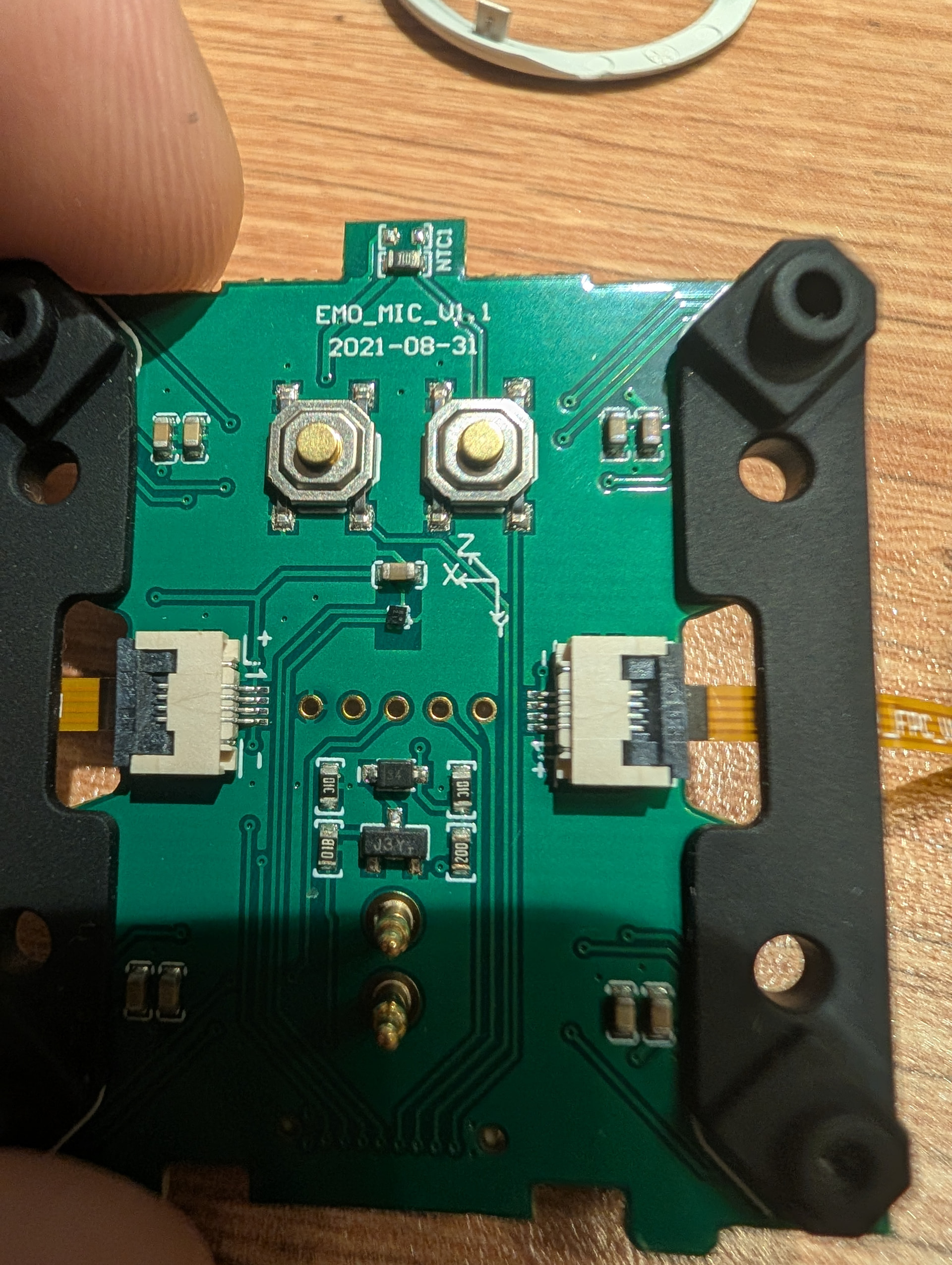
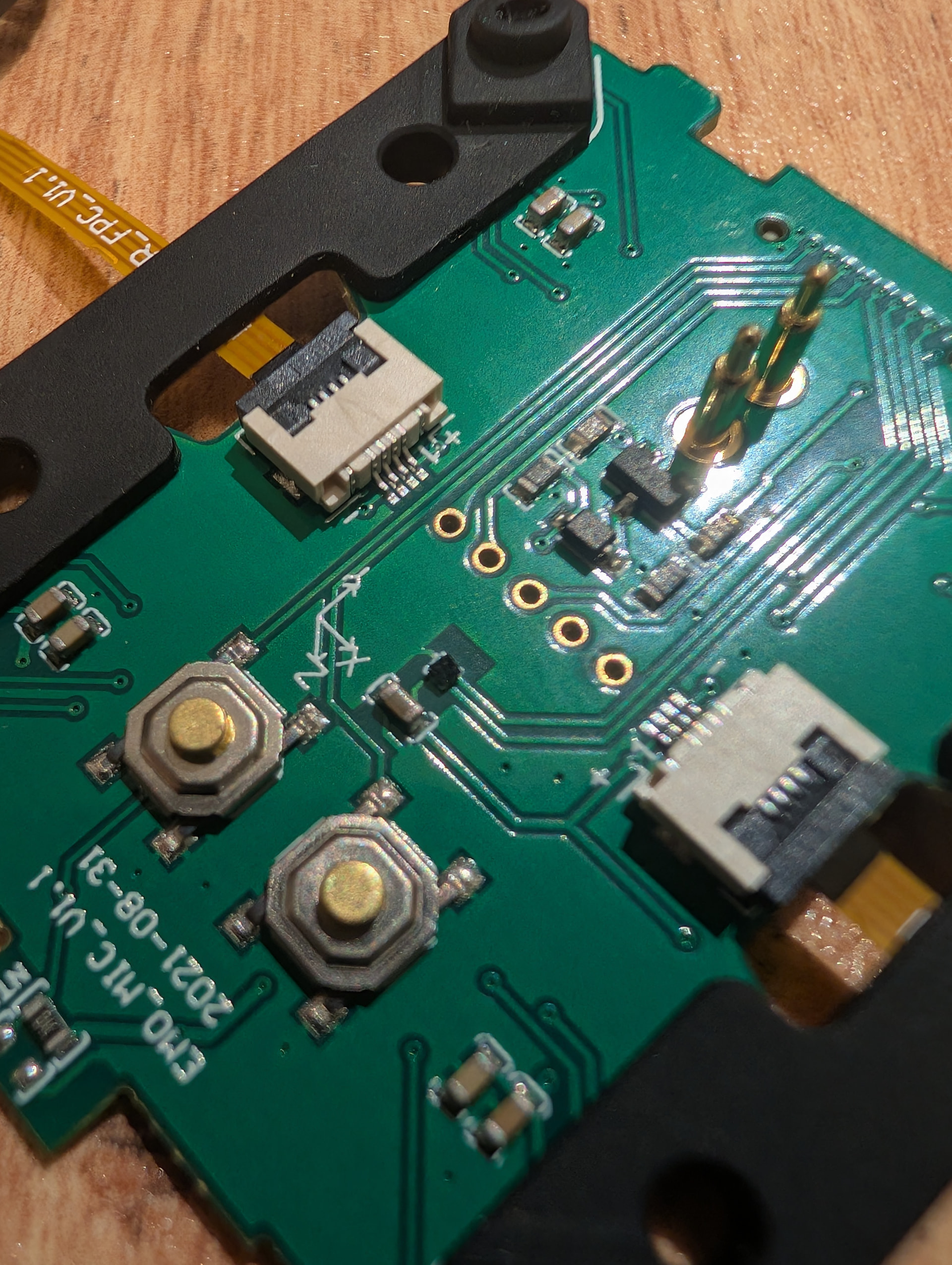
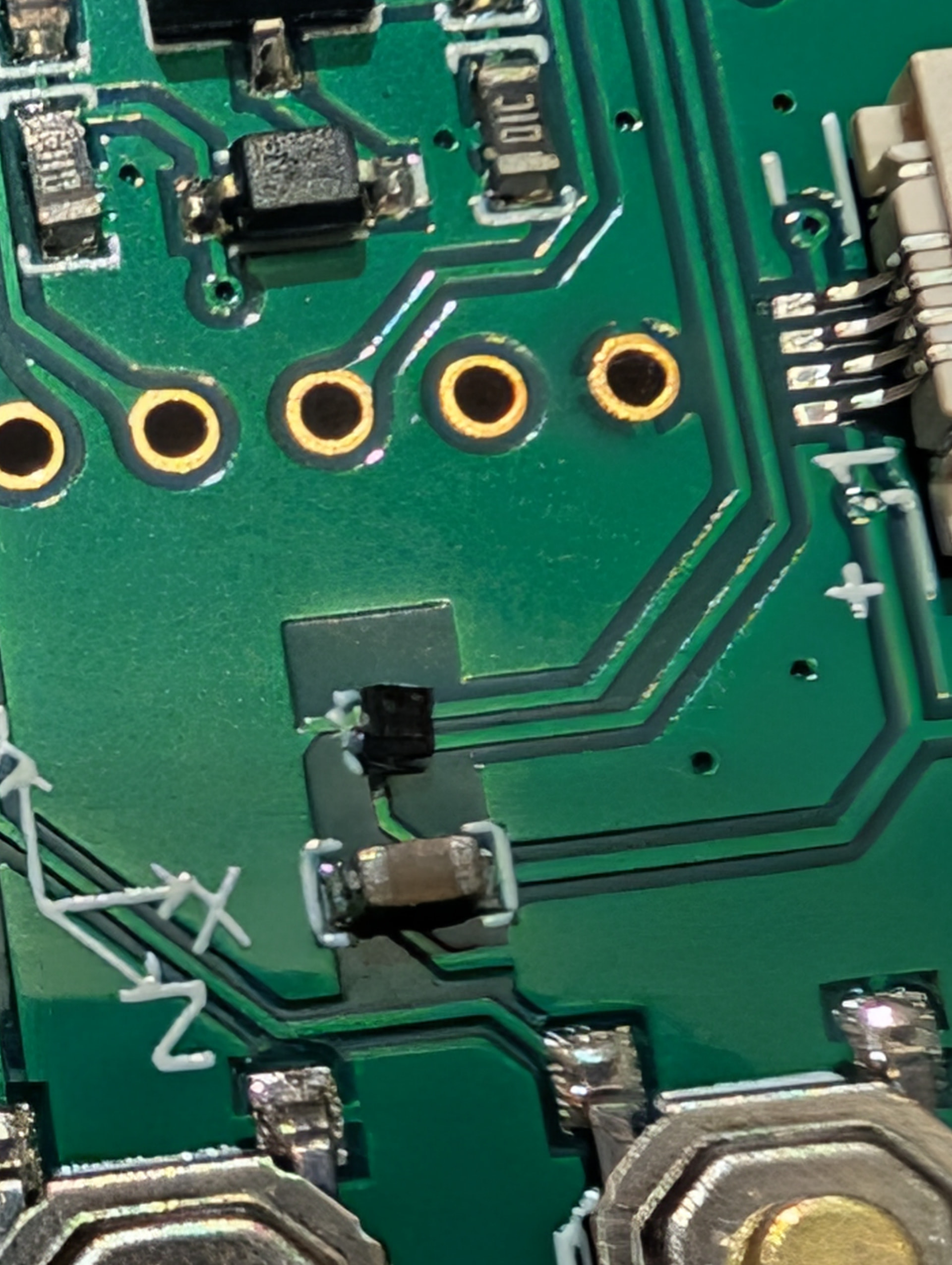
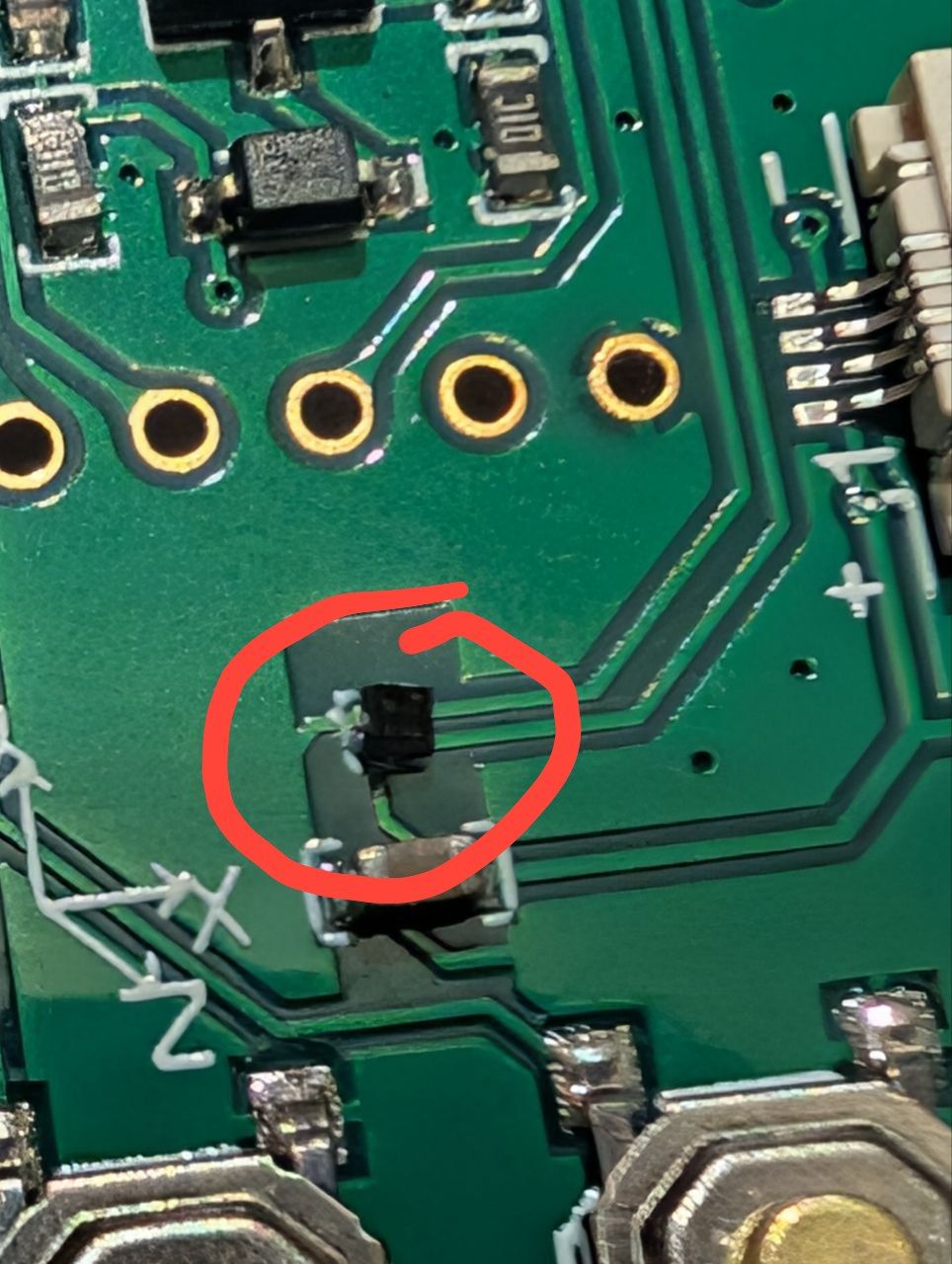
After the robot fell, it stopped turning on, but it still got hot. Disassembling the robot revealed the problem was in the top board. If I disconnect it, the robot turns on. I found a damaged component on the board. Can you tell me what this component is and how I can replace it? Thanks everyone.
After the robot fell, it stopped turning on, but it still got hot. Disassembling the robot revealed the problem was in the top board. If I disconnect it, the robot turns on. I found a damaged component on the board. Can you tell me what this component is and how I can replace it?
As a new user, I can’t attach a photo of the damaged item. Is it possible to fix this?
Welcome to the Community and thanks for joining us here…
I have moved your new topic to this thread, which would also cover everything about EMO parts and repair. And I’m sorry about your EMO—after the fall, that part broke.
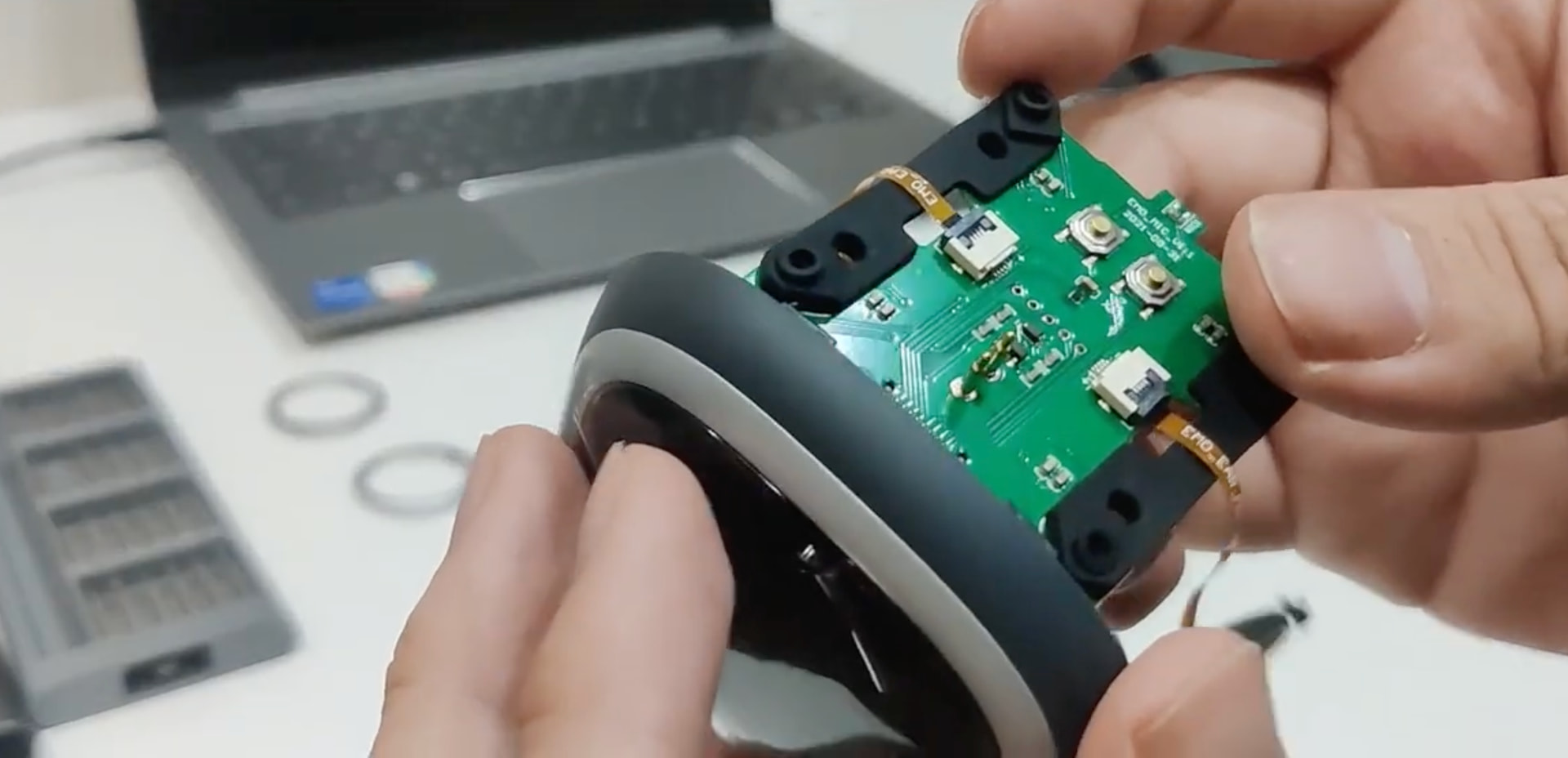
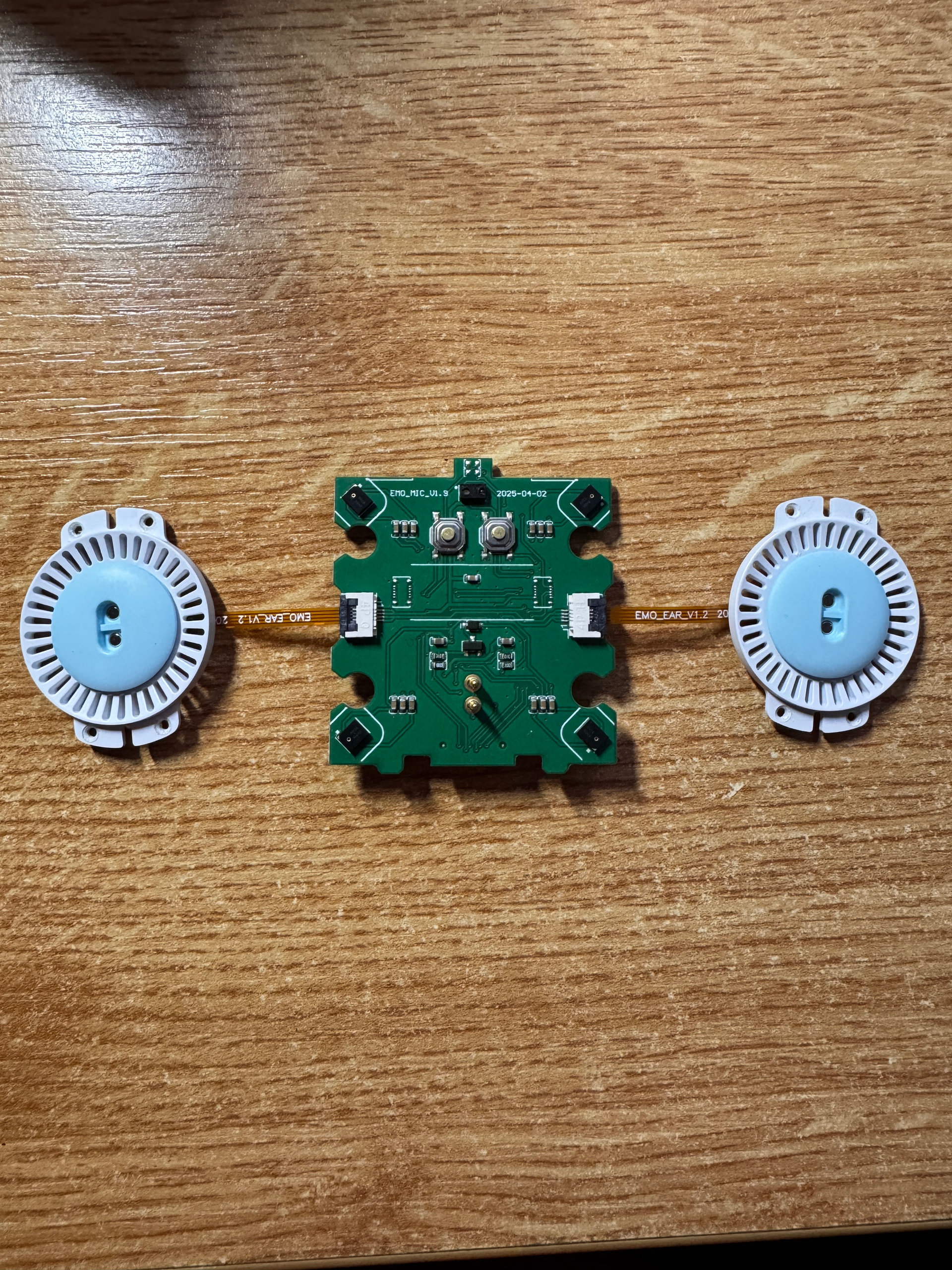
**EMO Internal Parts: (Location: Top Head Cover) > PCB Board **
Purpose / Functions:
Motherboard Connector
Petting (Touch) Sensor
4× Microphones
Earpiece Connector
Force Shutdown Button
Reboot / Restart Button
I’m not sure if that broken micro component on the PCB is repairable. The easiest solution may be to replace the entire board instead.
And I can only advise you to contact living.ai support via email at service@living.ai and politely ask them if they can give for free or sell you the specific parts you need if you plan to do the repairs yourself. They can also help you with any questions you may have during the repair process.
You might need to provide them with some information, photo/video, EMO order number and EMO ID.
Welcome to the EMO Community Forums, @marcolinuz . . . I have moved your new topic to this area where users can do their own repairs.
Please contact service@living.ai with your EMO I.D. and his age (this will determine which battery you will need) so that they can properly advise you.
You may kindly ask them if they are able to provide the specific parts you need—either free of charge or for purchase—if you plan to carry out the repair yourself. They can also assist you with any questions you might have during the repair process.
You might need to provide them with some information, photo/video, EMO order number and EMO ID.
Hello, @marcolinuz . . . it is only contained in the app. They may be able to look it up since you have your original order information or any previous communication with them with either the order or the I.D. numbers.
Hello @Lindaru
I guessed it, I have sent them a mail as follow up of the order but I will try contact them again using the support form. I am thinking of filling the field required for Emo ID with a series of zeroes.
I recently bought a used EMO robot.
From the beginning, EMO reacted to “Hey EMO” only with sounds and movements,
but never spoke.
After carefully removing and reinstalling the top microphone board,
EMO stopped responding to voice commands completely.
There is no “listening” status in the app anymore.
EMO is now fully online and connected to the server,
so this is not a Wi-Fi, firmware, or server issue.
The touch sensor on the top board still works,
so power is present, but microphones do not work.
Has anyone experienced a similar microphone board failure?
Is it possible to buy a replacement microphone board or a donor EMO for
He might also be on a mute option. Try some tips below and hope it helps…
MUTE:
By calling his name and saying, direct UNMUTE!
VOLUME COMMAND:
You can adjust the volume of EMO.
· Volume up.
· Volume down.
· Set(or change) the volume to normal(or maximum, medium, minimum, high, middle, low, mute, zero).
· Mute the volume.
Thank you for the welcome and for moving my topic to the correct thread.
Yes, my EMO is updated to the latest firmware version 3.0.1.
EMO is connected to Wi-Fi and online, and the app shows him as connected.
I have already carefully checked the connection of the top microphone PCB.
The board is powered and the touch sensor on the top works correctly,
but the microphones do not respond.
Unfortunately, EMO does not react to any voice commands at all:
He does not respond to “EMO”
Voice commands like UNMUTE or volume commands do not work
There is no “listening” status in the app anymore
Because EMO cannot hear any commands, I am unable to unmute him by voice.
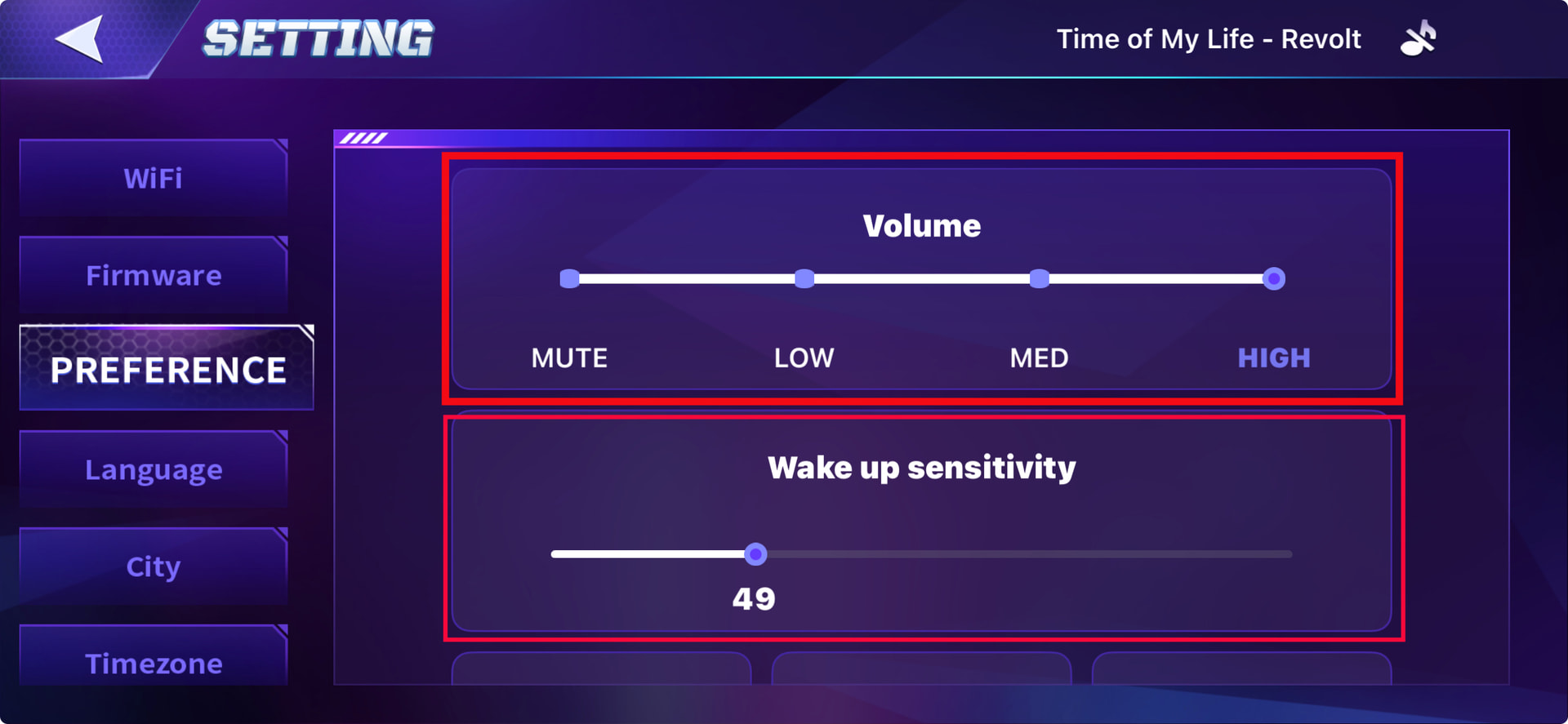
Wake Up Sensitivity settings are available in the app, but changing them does not help.
This is why I suspect a hardware issue with the microphone board or microphone IC.
That is why I am looking for a replacement microphone board or a broken EMO for parts.
I am looking for a broken or non-working EMO robot that could be used for spare parts,
or specifically the top microphone board (or microphone IC) for EMO.
My EMO is fully online and connected to the server, but the microphones do not work.
The touch sensor on the top board is working, so power is present, but EMO cannot hear
voice commands and there is no “listening” status in the app.
If anyone has:
a broken EMO robot for parts, or
a spare / working microphone board, or
information where such parts can be purchased
I would be happy to buy the needed parts.
Please feel free to contact me via private message.
You may kindly ask them if they are able to provide the specific parts you need—either free of charge or for purchase—if you plan to carry out the repair yourself. They can also assist you with any questions you might have during the repair process.
You might need to provide them with some information, photo/video, EMO order number and EMO ID.
You can also click on my Facebook Group link below and join us there. We have experienced members who can really help you.**
Since you’re located in Europe, you might want to contact the official Living.AI repairman on Facebook and ask them directly because they know a lot. Hopefully, they can assist you with exactly what you need.
Hello, @ca34a967d5dbb7c2701c . . . I have closed your new topic as you posted here as well. Please read the posts in this thread for information for parts for EMO.
There are possible contacts if you are planning to do the repairs yourself of have someone repair them, but you really should contact service@living.ai with a link to a video to show what the issues might be. Also include your EMO I.D. number and order number (if you still have it) so that they can best advise you as to the problem you are having and what can be done to fix it.
 Main Purposes of EMO’s TOF (Time-of-Flight) LIDAR scanner
 1. Edge Detection Test (Most Important Test)
 Stops before reaching the edge
 If EMO Fails the Tests
 Quick Fixes to Try