Welcome to the “EMO Pet: Tips, Ideas, & Solutions” section!
We’re thrilled to have you here in this dedicated space where EMO enthusiasts and owners can come together to share insights, exchange ideas, and find solutions to common issues. This section is designed to be a comprehensive resource for everything related to EMO Pet, from practical tips on maximizing its features to creative ideas for getting the most out of your device.
Here, you’ll find:
Tips: Practical advice on how to effectively use EMO, troubleshoot common issues, and enhance your overall experience.
Ideas: Innovative ways to integrate EMO into your daily life, fun activities to try, and suggestions to make your interactions with EMO more enjoyable.
Solutions: Step-by-step guides and solutions to help resolve any challenges or issues you may encounter with your EMOPet.
Feel free to browse through the topics, share your own experiences, and contribute your knowledge. Whether you’re a new owner or a seasoned enthusiast, your input is invaluable in making this a vibrant and helpful community.
Thank you for being part of this journey with us. Together, we can make the most of EMO Pet and create a fantastic experience for everyone!
EMO kept singing and dancing while I was in meetings, and “be quiet” only lasts an hour. So I wrote a small script that mutes him and switches on Carry Mode the moment a call starts, and puts his volume and Carry Mode back when the call ends. By default it watches Teams; with one option it reacts to any app that uses the microphone, so Zoom, Google Meet and the rest work too.
It runs in the background on Windows, needs no admin rights, and talks to EMO over Bluetooth the same way the EMO app does (EMO can’t be connected to the phone app at the same time). If EMO is out of range or the script gets restarted mid-call, it remembers his previous settings and restores them afterwards. Tested with firmware 3.2.0 (#42).
I’ve moved and merged your post into this thread, where we and other community members can share helpful tips, creative ideas, and possible solutions to any minor issues. At the same time, I closed the new topic you created to keep everything organized within the community.
Thanks for sharing your idea and project! It’s not bad at all—actually, it’s quite interesting.
Hi everyone! I’m Fulvio, and I’d like to share EMO Control, an unofficial macOS panel I built for my EMO GO HOME. It connects over Bluetooth and lets you check the battery, trigger animations, and set up daily routines from your Mac. You can pair it with your own EMO from inside the app.
What it can do
Battery and charging. Read EMO’s battery percentage and firmware version, see when the robot reports that it’s charging, and optionally monitor battery and charging while the panel is open.
Volume and preferences. Adjust volume and wake-word sensitivity, daily activities and their sounds, automatic replies, time format, measurement units, news source, Bluetooth music role, Flower & Fire effects, and the automatic-update setting. Available options depend on what your EMO reports.
Robot information and nickname. View profile details, saved alarm counts, and unlocked content when available. You can also set or remove a nickname.
Theater and movement. Pick from 46 built-in animations, including animal sounds, piano, singing, camping, and laser eyes. Send short forward, backward, left, or right movement commands. Give EMO a flat surface with room away from the edges.
Custom speech. Type a phrase for EMO to say and save your favorites locally on your Mac.
Day and night profiles. Set different times and preferences for daytime and nighttime. You can pause the night profile and restore your saved daytime settings.
Daily animations. Schedule up to three animations at different times. Keep the panel open and both your Mac and EMO awake at the scheduled time.
Shutdown and firmware. Request shutdown with confirmation. The firmware button opens LivingAI’s update guide and lets you reread the installed version. Start the update itself through EMO Pet or EMO’s voice command.
How to install and connect
On a Mac with Bluetooth and Python 3.11 or later, unzip the download and double-click Install, the app with the EMO icon. The first installation needs an internet connection to download Python dependencies.
Install places the panel in the EMO Control folder inside your home folder and opens it without launching Terminal. Allow Desktop access if macOS asks, so it can create the Apri EMO Control shortcut for future launches. The installer is unsigned and has not been notarized by Apple.
Choose English from the language menu at the top right, then quit and reopen the panel. Italian and Simplified Chinese are also available.
EMO Control for macOS
Hi everyone! I’m Fulvio, and I built EMO Control, an unofficial macOS panel for controlling your LivingAI EMO over Bluetooth. I started it with my EMO GO HOME because I wanted to check his battery from my Mac, set different preferences for day and night, and trigger animations from one place. You can now pair the panel with your own EMO.
What you can do
Battery and charging. Read EMO’s battery percentage and firmware version, monitor charging while the panel is open, and keep a local history of explicit battery readings.
Sound and preferences. Adjust volume and wake-word sensitivity, and change supported settings such as daily activities and their sounds, automatic replies, measurement units, and clock format.
Robot information. Read profile details, see stored alarm and unlocked content information when available, and set or remove a nickname. You can also request shutdown from the top bar.
Theater and speech. Try 46 built-in animations, send short movement commands, and make EMO say custom phrases. You can save your favorite phrases on your Mac.
Schedules and automations. Set separate day and night profiles and schedule up to three daily animations. Keep the panel open and the Mac awake. EMO also needs to be awake for scheduled animations.
Firmware. Open LivingAI’s update instructions and reread the installed version afterward. Start the update through EMO Pet or EMO’s voice command.
How to get started
Make sure your Mac has Bluetooth and Python 3.11 or later. Unzip the download and double-click Install, the app with the EMO face. It installs the panel in your home folder and creates the Apri EMO Control shortcut on your Desktop.
Wake EMO, keep him nearby, and close EMO Pet on your phone to free the Bluetooth connection. Allow Bluetooth access if macOS asks.
Click Abbina EMO… and select your robot’s ID. Then click Batteria to read its status.
To switch from Italian to English or Simplified Chinese, use the language menu in the top-right corner, then quit and reopen the panel.
The download includes guides in Italian, English, and Simplified Chinese. The installer is unsigned and has not been notarized by Apple. I’ve tested core features on my EMO GO HOME with firmware 3.2.0.p1. Some animations and behavior on other firmware versions still need testing.
Download
The release ZIP contains Install and the three guides. Choose the ZIP from the release assets.
If you try it, I’d love to hear which macOS and EMO firmware versions you’re using and which features work for you. You can also reach me at carretta.fulvio71@gmail.com.
Thanks to the community projects that documented the Bluetooth protocol. EMO Libre · JoVe13’s Emo-Scripts · emo-connect-python.
I’ve transferred your post to this existing thread so that everything stays organized in one place. This way, you and other community members can exchange helpful suggestions, share creative ideas, and discuss possible solutions to minor issues. I’ve also closed the separate topic you created to avoid having duplicate discussions.
Thank you for sharing your idea and project with the community! I actually find it quite interesting, and I appreciate your creativity and effort. Keep it up!
Thank you for the warm welcome and for moving my post to the right thread! I’m glad you found EMO Control interesting. I hope to keep developing it and look forward to hearing what the community would like to see in future versions.
You’re very welcome! It’s great to have you here in the community. I’m glad you’re continuing to develop EMO Control, and I’m looking forward to seeing how your project evolves. Keep up the great work, and don’t hesitate to share your updates and ideas with us. I’m sure other community members will be happy to share their thoughts and suggestions.
It would also be great if you could share a video demonstrating how it works and how to get it up and running. I’m sure many of us would love to see it in action!
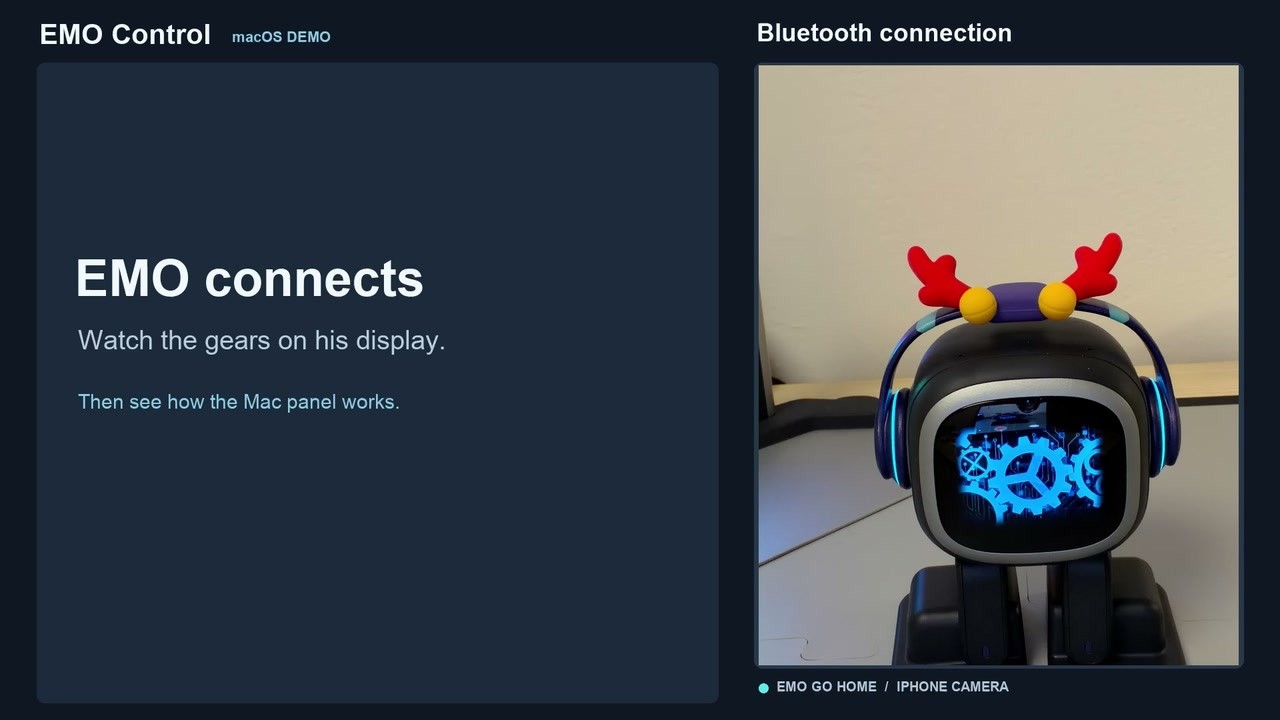
Hi Edward! Thanks for suggesting a video. I’ve uploaded a short demo showing EMO Control and my EMO GO HOME in action, side by side. Hope you enjoy it, and sorry I’m no Steven Spielberg!
Hello, @fulvio.carretta . . . this looks fabulous! When Windows 11 came out (which I have) there had been talk that we would be able to control EMO with an app for that O.S., but it never happened. I am hopeful that something like this can be created for Windows.