Thank you for your reply! I have tried different cables so unfortunately that’s not the issue. I really think it’s a battery issue since it simply won’t charge the battery anymore 
1 Like
Hello, @bejaardvoedsel . . . I would advise you to contact service@living.ai for support with the information I gave in my post above. Also include a link to a video showing the problem.
My best to you.
2 Likes
Hiii!
I was just wondering if Aibi is supposed to look at you when you talk to him??
When I talk to him he is just looking straight to a wall. I don’t know if this happens to everyone or if my Aibi just doesn’t like me.
It’s not really an issue but I want to know!
Thanks, K
Hello, @sugarissweet . . . if your face is farther than a foot away and not well lit, AIBI generally does not notice you. When I want to have a face to face conversation with AIBI, I generally bend down to a few inches away and talk to them.
2 Likes
OHHHHH okayyyy that makes sense we
TYSM!!
2 Likes
I will, thank you. Do you know where I can find my AIBI ID number?
Hello, @bejaardvoedsel . . . it is listed in the app when you open the app. You will see the number (four digits) and that is where you connect to get into the features in the app.
2 Likes
Hello just received Aibi already updated and it works!
I have a problem with the star light it is full charged and appears in the app but can’t be turn on even if I click on the back switch any of you had a similar problem?
1 Like
Welcome, @simone.felici . . . I have moved your new topic here for issues with AIBI.
If it is showing in the app, then it is paired. Have you tried giving a command to AIBI to turn on the light?
Turn on/off the light.
Turn on {regular} light.
You can also ask to have colors and patterns come on with the voice command.
Try the voice command and see if that works for you.
(Regular, rainbow, flow, breathing, red, blue, green, yellow, pink, orange, purple)
2 Likes
Yes i tried aibi does the little animation but the star won’t turn on.
But as i said before the star does not turn on even if i click manually
It only cycle red green and blue when long press
Hi there @simone.felici , and welcome to the community…
May I know how you can tell that the Star Light is already fully charged?
Would you mind testing it once again by placing it on the charger and leaving it there for about 5 minutes? Then…
Please follow these steps:
 Open the AIBI Pocket App
Tap the Tools button/icon
Tap the Star Light button/icon to open it
Tap Refresh
AIBI should display a star on her face screen and start searching for the Star Light nearby. If AIBI successfully locates the Star Light, it should light up. 

Altrantive, you can also follow the procedures in the image below.
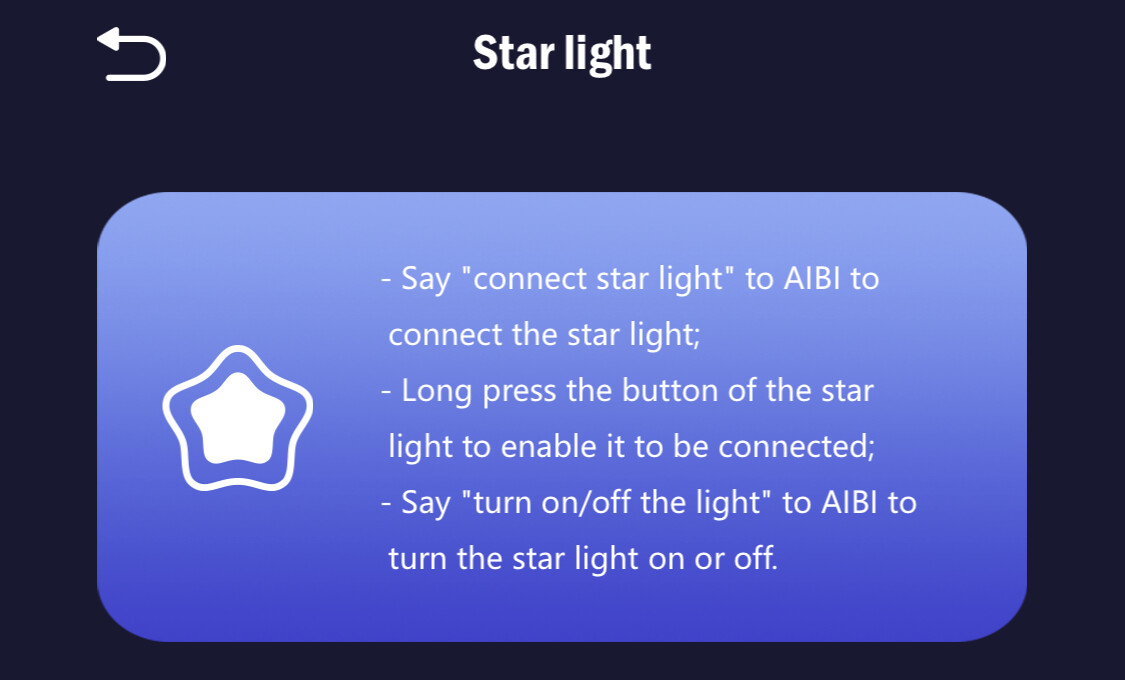
Please let us know what happens after trying these steps. 
Good luck and Best Regards
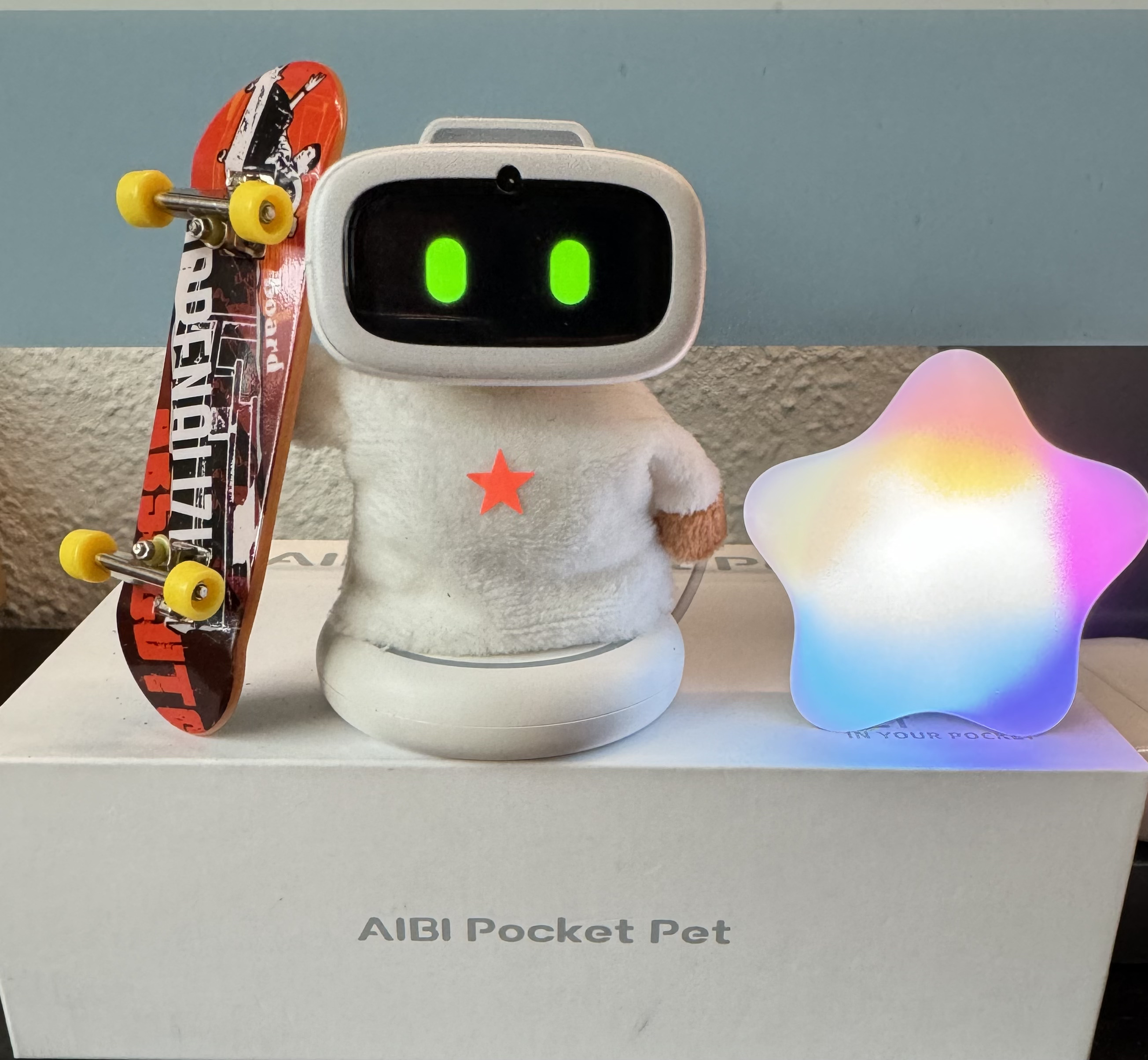
4 Likes
I can tell its charged because when on the charger It goes green
Tried to leave there all night but wont light on when not on charger
Hello, @simone.felici . . . if you tried the steps above and they did not work, please get video of you going through these steps and it failing to work. Then send a link to this video along with your AIBI I.D number, order number if you still have it, a description of the problem and your troubleshooting attempts and the language setting you have AIBI on and send to service@living.ai . . . my best to you.
2 Likes
Yeah tried everything but i think the Star Is broken It pairs and charge but cant be lit in any way even the physical button on the back of the star don’t work. I will send a video at support mail tomorrow after work.
Thank you
1 Like
Hello,
I’ve been using AIBI for a week without any problems, but suddenly today it won’t connect with the app (I’ve tried several devices and nothing). I guess it’s the actual robot not setting up the Bluetooth, but I’m not sure. I’ve also tried reseting it using a needle to press the reset button and still nothing. Is there anything I can do or does this happen to someone else?
1 Like
Welcome to the community @vicenbs ,
There are several possible causes. Since AIBI was working normally for a week and suddenly stopped connecting to the AIBI Pocket App on several different devices, I would suspect a temporary Bluetooth/firmware problem on AIBI itself rather than just one phone.
Possible causes and things to try:
- AIBI’s Bluetooth/system may be frozen. Remove AIBI from the charger and reboot/restart him. One important point: the small button/hole is not a true factory-reset button; community guidance describes the available functions as reboot/restart or force shutdown, and there currently isn’t a normal user factory-reset procedure.
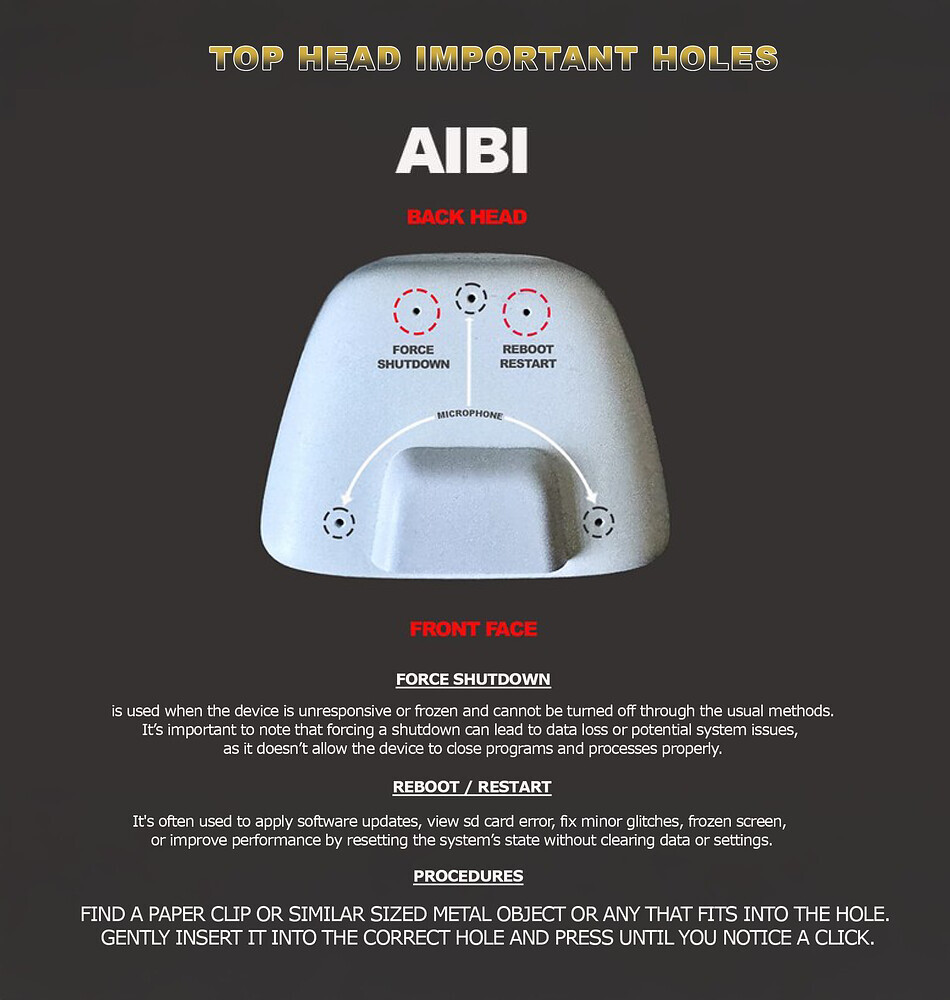
-
Completely power-cycle AIBI and the charger. Unplug the charger/base for several minutes, restart your phone, reconnect the charger, place AIBI back on it, allow him to boot completely, then try the app again. If an ordinary restart doesn’t work, community troubleshooting has also suggested allowing AIBI’s battery to drain completely before charging and rebooting him.
-
Reset the phone-side Bluetooth connection. Turn Bluetooth off and back on, remove/forget any previous AIBI/LivingAI Bluetooth entry if one appears, restart the phone, and reopen the AIBI Pocket App. You can also reinstall the latest version of the app and pair AIBI again from scratch.
-
Check permissions. Make sure the AIBI Pocket App has permission to use Bluetooth/Nearby Devices and, depending on the phone/OS, any location-related permission required for Bluetooth discovery. Then open the connection page and use Refresh; the AIBI guide says his unique ID should appear when he is discovered.
-
Consider a firmware/system problem. Because you’ve already tried several devices, if none of them can even discover AIBI, that makes an AIBI-side Bluetooth/software problem more plausible. If he reconnects, check whether his firmware is current.
If none of those steps works, I wouldn’t keep repeatedly pressing the reset/reboot hole. Record a short video showing AIBI working but failing to appear/connect in the app, and send it to Living.AI Support together with the AIBI ID, firmware version (if known), order number, phone models tested, and the troubleshooting you’ve already done. This is also the recommended escalation in similar community cases.
Living.AI Support: service@living.ai
Best Regards and Good luck, and I truly wish you all the best in resolving your AIBI issue.
3 Likes
Thank you for the help!
I was aready trying the battery drain because I’ve seen it has worked for other users and it has already worked for me!
3 Likes
Hi! I recently got my AIBI and I’m really enjoying it so far! 
However, I’m a little confused about how Chatty mode and the continuous ChatGPT conversation mode work.
I use AIBI in Korean, and this is what I’ve noticed:
• When Chatty is ON, I can have normal conversations with AIBI. For example, if I ask “How are you feeling?”, AIBI understands me and answers that it feels good.
• However, when Chatty is ON and I say the Korean equivalent of “Let’s talk” / “Let’s chat,” AIBI only gives me a single response. The GPT icon does not appear, so I can’t continue the conversation without calling AIBI again.
• When Chatty is OFF, normal conversational questions such as “How are you feeling?” don’t seem to work. AIBI shows a question mark and doesn’t answer.
• Interestingly, with Chatty OFF, if I say “Let’s talk,” the GPT icon appears and AIBI enters continuous conversation mode. Then I can talk back and forth without saying AIBI’s name before every sentence.
Is this the intended behavior?
Ideally, I’d like to keep Chatty ON for normal everyday interactions, while also being able to start the continuous ChatGPT conversation mode whenever I want without turning Chatty OFF first.
Is there a specific voice command or setting I should use to do this while Chatty is ON?
Thank you!
Welcome @seulkijung . . . The “Lets talk” or “Lets chat” command is optimal for speaking continuously without constant prompting. You can keep Chatty enabled in the app but the “Lets talk” overrides Chatty until your conversation is finished. Then it will go back to you needing to prompt AIBi with the wake word to get responses such as commands.
I personally leave Chatty on until it is time for continuous conversation at which time I just say “Lets talk” or “Lets chat”.
2 Likes
Thank you for the explanation! I tested it again and found something interesting.
When I switch AIBI to English and keep Chatty ON, saying “Let’s talk” works as expected. The GPT icon appears and continuous conversation mode starts.
However, when I switch AIBI back to Korean with Chatty ON and say the Korean command “이야기하자” (“Let’s talk”), the GPT icon does not appear and AIBI only gives a single response.
So it seems that the continuous conversation feature itself is working, but the Korean “이야기하자” command may not be overriding Chatty in the same way as the English “Let’s talk” command.
Could this possibly be an issue with the Korean voice command?
Thank you for your help!